Java作业-4
什么是绑定属性?什么接口定义绑定属性?什么接口定义源对象? int、long、float、double,以及boolean的绑定对象类型是什么?Integer 和 Double 是绑定属性吗? Integer和Double可以在一个绑定中作为源对象吗?
七种面板
如何在一个 FlowPane 和 GridPane中设置节点间的水平间隔和垂直间隔为 8 像素,以及如何在 HBox 和 VBox 中设置间距为 8 像素
四风扇、圆柱、BarCharts、可变网格
什么是绑定属性?什么接口定义绑定属性?什么接口定义源对象? int、long、float、double,以及boolean的绑定对象类型是什么?Integer 和 Double 是绑定属性吗? Integer和Double可以在一个绑定中作为源对象吗?
- 绑定属性是指能够与其他属性进行绑定的属性。这些属性通常是
Property类型,例如SimpleIntegerProperty、SimpleStringProperty等 - JavaFX 中定义绑定属性的接口是
javafx.beans.property.Property<T> - 源对象通常是指那些可以观察的对象,其值的变化可以被其他对象所观察。这些对象实现了 Observable 接口。
| 基本数据类型 | 绑定对象类型 |
|---|---|
| int | IntegerProperty |
| long | LongProperty |
| float | FloatProperty |
| double | DoubleProperty |
| boolean | BooleanProperty |
Integer和Double本身是 Java 的封装类型,而不是 JavaFX 的绑定属性。但是,JavaFX 提供了相应的Property类型(如IntegerProperty和DoubleProperty)来使这些基本数据类型具有绑定特性。- 不能直接将一个
IntegerProperty与一个DoubleProperty绑定。但是可以使用转换或其他中间步骤来完成。例如创建一个计算绑定,其中一个属性的值是基于另一个属性的值进行计算的。在这种情况下,可以将DoubleProperty的值转换为整数,并与IntegerProperty进行绑定。
如何将一个节点加入到一个Pane、StackPane、FlowPane、GridPane、BorderPane、HBox、VBox 中?如何从这些面板中移除一个节点?并解释一下这七种面板的特点
| 面板 | 添加操作 | 移除操作 | 特点 |
|---|---|---|---|
| Pane | pane.getChildren().add(node); |
pane.getChildren().remove(node); |
基本布局,无特殊布局安排。 |
| StackPane | stackPane.getChildren().add(node); |
stackPane.getChildren().remove(node); |
将子节点堆叠在同一位置,默认居中。 |
| FlowPane | flowPane.getChildren().add(node); |
flowPane.getChildren().remove(node); |
从左到右或从上到下排列子节点,自动换行。 |
| GridPane | gridPane.add(node, columnIndex, rowIndex); |
gridPane.getChildren().remove(node); |
网格布局,按指定行和列放置组件。 |
| BorderPane | 根据区域,如:borderPane.setTop(node); |
borderPane.getChildren().remove(node); |
五个区域(上、下、左、右、中心)布局。 |
| HBox | hBox.getChildren().add(node); |
hBox.getChildren().remove(node); |
水平盒子,从左到右排列子节点。 |
| VBox | vBox.getChildren().add(node); |
vBox.getChildren().remove(node); |
垂直盒子,从上到下排列子节点。 |
如何在一个 FlowPane 和 GridPane中设置节点间的水平间隔和垂直间隔为 8 像素,以及如何在 HBox 和 VBox 中设置间距为 8 像素?
-
FlowPane:
– 水平间隔: flowPane.setHgap(8);
– 垂直间隔: flowPane.setVgap(8); -
GridPane:
– 水平间隔: gridPane.setHgap(8);
– 垂直间隔: gridPane.setVgap(8); -
HBox:
– 间距: hBox.setSpacing(8); -
VBox:
– 间距: vBox.setSpacing(8);
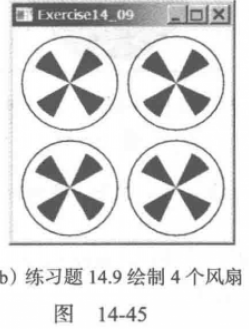
(创建四个风扇)请写一个程序,将四个风扇按照两行两列置于一个GridPane 中,如图14-45b所示
import javafx.application.Application;
import javafx.scene.Scene;
import javafx.scene.layout.GridPane;
import javafx.scene.layout.Pane;
import javafx.scene.paint.Color;
import javafx.scene.shape.Arc;
import javafx.scene.shape.ArcType;
import javafx.scene.shape.Circle;
import javafx.stage.Stage;

public class FourFan extends Application {
    @Override
    public void start(Stage primaryStage) {
        GridPane gridPane = new GridPane();
        // 将四个风扇放入GridPane中
        for (int i = 0; i < 2; i++) {
            for (int j = 0; j < 2; j++) {
                gridPane.add(createRadiationPane(), i, j);
            }
        }

        gridPane.setHgap(10);
        gridPane.setVgap(10);
        Scene scene = new Scene(gridPane, 220, 220);
        primaryStage.setTitle("Fan Layout");
        primaryStage.setScene(scene);
        primaryStage.show();
    }

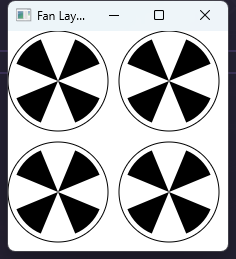
    /** 返回风扇面板,不过长得也不像啊 */
    private Pane createFanPane() {
        Pane fanPane = new Pane();
        double radius = 50; // 设定风扇的半径

        Circle circle = new Circle(radius, radius, radius); // 边界圆形
        circle.setStroke(javafx.scene.paint.Color.BLACK);
        circle.setFill(javafx.scene.paint.Color.WHITE);
        fanPane.getChildren().add(circle);

        for (int i = 0; i < 4; i++) {
            Arc arc = new Arc(radius, radius, radius * 0.9, radius * 0.9, 22.5 + 90 * i, 45);
            arc.setFill(javafx.scene.paint.Color.BLACK); // 设置颜色
            arc.setType(ArcType.ROUND); // 设置Arc的类型
            fanPane.getChildren().add(arc);
        }

        return fanPane;
    }

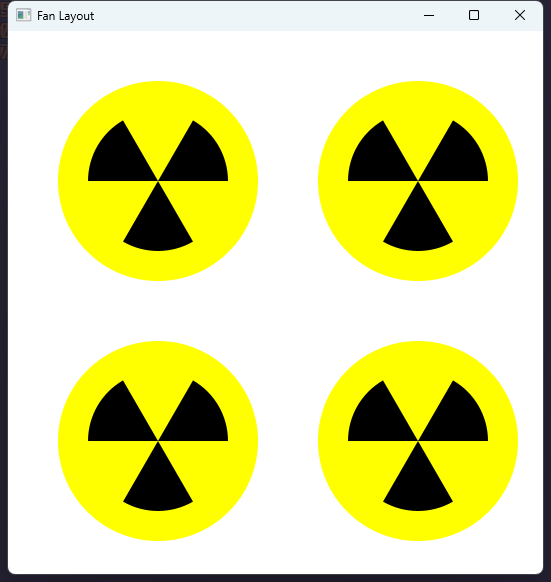
    /* 这下看懂了 */
    private Pane createRadiationPane() {
        Pane pane = new Pane();
        double centerX = 150, centerY = 150, radius = 100;

        // 绘制中心圆
        Circle circle = new Circle(centerX, centerY, radius);
        circle.setFill(Color.YELLOW);
        pane.getChildren().add(circle);

        // 绘制三个弧形
        for (int i = 0; i < 3; i++) {
            Arc arc = new Arc(centerX, centerY, radius * 0.7, radius * 0.7,  i * 120, 60);
            arc.setFill(Color.BLACK);
            arc.setType(ArcType.ROUND);
            pane.getChildren().add(arc);
        }

        return pane;
    }
}
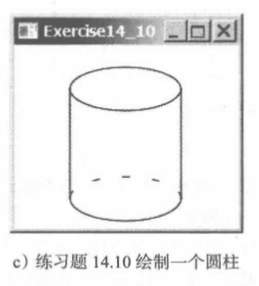
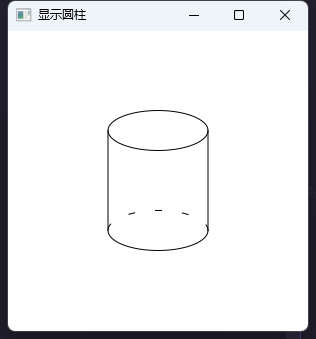
(显示一个圓柱)请写一个绘制圆柱的程序,如图所示。可以使用如下方法来用虚线显示弧
arc.getStrokeDashArray().addAll(6.0, 21.0);
import javafx.application.Application;
import javafx.scene.Group;
import javafx.scene.Scene;
import javafx.scene.layout.BorderPane;
import javafx.scene.layout.Pane;
import javafx.scene.shape.Arc;
import javafx.scene.shape.ArcType;
import javafx.scene.shape.Ellipse;
import javafx.scene.shape.Line;
import javafx.stage.Stage;

public class CylinderWithArc extends Application {

    @Override
    public void start(Stage primaryStage) {
        Scene scene = new Scene(getPane(), 300, 300);
        // Scene scene = new Scene(getPane3D(100,150), 300, 300);
        primaryStage.setScene(scene);
        primaryStage.setTitle("显示圆柱");
        primaryStage.show();
    }

    /** 返回圆柱面板 */
    private Pane getPane() {
        Group group = new Group(); // 组

        double X0 = 100;
        double Y0 = 100; // 下圆心坐标
        double height = 100; // 高度
        double radiusX = 50; // X半径
        double radiusY = 20; // Y半径

        // 上边圆
        Ellipse topEllipse = new Ellipse(X0, Y0, radiusX, radiusY);
        topEllipse.setStyle("-fx-stroke: black; -fx-fill: white; "); // 黑色画线,白色填充

        // 下边虚线弧
        Arc dashArc = new Arc(X0, Y0 + height, radiusX, radiusY, 0, 180);
        dashArc.setStyle("-fx-fill: white; -fx-stroke: black;"); // 黑色画线,白色填充
        dashArc.getStrokeDashArray().addAll(6.0, 21.0); // 设置虚线
        dashArc.setType(ArcType.OPEN); // 设置类型

        // 下边实线弧
        Arc solidArc = new Arc(X0, Y0 + height, radiusX, radiusY, 180, 180);
        solidArc.setStyle("-fx-fill: white; -fx-stroke: black;");
        solidArc.setType(ArcType.OPEN);

        // 左边线
        Line left = new Line(X0 - radiusX, Y0, X0 - radiusX, Y0 + height);

        // 右边线
        Line right = new Line(X0 + radiusX, Y0, X0 + radiusX, Y0 + height);

        group.getChildren().addAll(topEllipse, dashArc, solidArc, left, right);
        return new BorderPane(group);
    }

    /* 带简单三维透视转换的图形,但是效果好像不大对*/
    private Pane getPane3D(double observerDistance, double observerAngle) {
        Group group = new Group(); // 创建一个组

        double X0 = 100;
        double Y0 = 100; // 原始圆心坐标
        double height = 100; // 圆柱体的原始高度
        double radiusX = 50; // X轴的原始半径
        double radiusY = 20; // Y轴的原始半径

        // 根据观察者的距离和角度调整椭圆的大小
        double perspectiveFactor = observerDistance / (observerDistance + height);
        double adjustedRadiusX = radiusX * perspectiveFactor;
        double adjustedRadiusY = radiusY * perspectiveFactor;

        // 调整椭圆的位置
        double adjustedY0 = Y0 + height * Math.sin(Math.toRadians(observerAngle));

        Ellipse topEllipse = new Ellipse(X0, Y0, radiusX, radiusY); // 上边的椭圆
        topEllipse.setStyle("-fx-stroke: black; -fx-fill: white;");

        Ellipse bottomEllipse = new Ellipse(X0, adjustedY0, adjustedRadiusX, adjustedRadiusY); // 下边的椭圆
        bottomEllipse.setStyle("-fx-stroke: black; -fx-fill: white;");

        Line left = new Line(X0 - radiusX, Y0, X0 - adjustedRadiusX, adjustedY0); // 左边的线
        Line right = new Line(X0 + radiusX, Y0, X0 + adjustedRadiusX, adjustedY0); // 右边的线

        group.getChildren().addAll(topEllipse, bottomEllipse, left, right);
        return new BorderPane(group);
    }

}
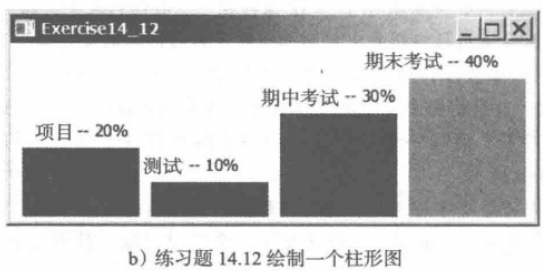
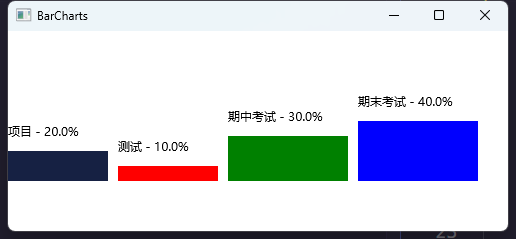
(显示一个柱形图)请写一个程序,使用柱形图来显示一个总成绩的各个组成部分的百分比,包括项目、测试、期中考试和期末考试,如图所示。假设项目占20%并显示为红色,测试占10%并显示为蓝色,期中考试占30%并显示为绿色,期末考试占40% 并显示为橙色。使用Rectangle 类来显示柱形。有兴趣的读者可以探索使用JavaFX 的BarChart 类来进一步学习
import javafx.application.Application;
import javafx.scene.Scene;
import javafx.scene.layout.GridPane;
import javafx.scene.layout.Pane;
import javafx.scene.paint.Color;
import javafx.scene.shape.Rectangle;
import javafx.scene.text.Text;
import javafx.stage.Stage;

public class FourBarCharts extends Application {

    @Override
    public void start(Stage primaryStage) {
        GridPane gridPane = new GridPane();

        // 添加四个柱状图到GridPane中
        gridPane.add(Barchart("项目", 0.2, Color.rgb(22, 33, 67)), 0, 0);
        gridPane.add(Barchart("测试", 0.1, Color.RED), 1, 0);
        gridPane.add(Barchart("期中考试", 0.3, Color.GREEN), 2, 0);
        gridPane.add(Barchart("期末考试", 0.4, Color.BLUE), 3, 0);

        gridPane.setHgap(10);

        Scene scene = new Scene(gridPane, 500, 200);
        primaryStage.setTitle("BarCharts");
        primaryStage.setScene(scene);
        primaryStage.show();
    }

    private Pane Barchart(String barName, double percentage, Color color) {
        Pane barPane = new Pane();

        // 根据传入的比例计算柱的高度
        double barHeight = 150 * percentage; // 设置最大高度为150px
        double barY = 150 - barHeight;

        // 创建柱状图
        barName += " - " + percentage * 100 + "%";
        double barWidth = barName.length() * 10;
        Rectangle bar = new Rectangle(barWidth, barHeight); // 宽度为30px,高度根据传入的比例计算
        bar.setFill(color);
        bar.setLayoutY(barY);

        // 创建柱名称
        Text barLabel = new Text(barName);
        barLabel.setLayoutY(barY - 15); // 放在柱的上方

        barPane.getChildren().addAll(bar, barLabel);

        return barPane;
    }
}
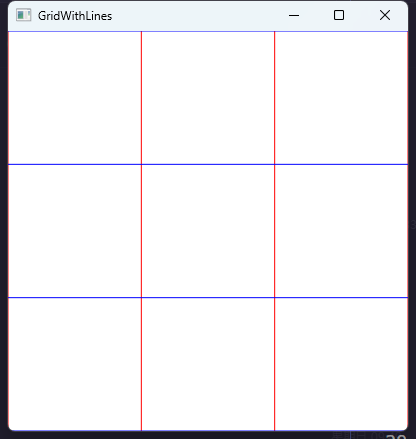
(显示一个3 x 3 的网格)请写一个绘制3 x 3 网格的程序,如图所示。使用红色绘制垂直线,蓝色绘制水平线。当窗体改变大小的时候,这些线条自动改变大小

import javafx.application.Application;
import javafx.stage.Stage;
import javafx.scene.Scene;
import javafx.scene.layout.Pane;
import javafx.scene.paint.Color;
import javafx.scene.shape.Line;

public class GridWithLines extends Application {

    @Override
    public void start(Stage primaryStage) throws Exception {
        int a = 3;
        int b = 3;
        Color verticalLineColor = Color.RED;
        Color horizonLineColor = Color.BLUE;

        Pane pane = drawGrid(a, b, verticalLineColor, horizonLineColor);
        Scene scene = new Scene(pane, 400, 400, false, null);
        primaryStage.setTitle("GridWithLines");
        primaryStage.setScene(scene);
        primaryStage.show();
    }

    private Pane drawGrid(int a, int b, Color verticalLineColor, Color horizonLineColor) {
        Pane gridPane = new Pane();

        double cellWidth = 1.0 / a;
        double cellHeight = 1.0 / b;

        // 绘制垂直线
        for (int i = 0; i <= a; i++) {
            Line verticalLine = new Line();
            verticalLine.setStroke(verticalLineColor);
            verticalLine.startXProperty().bind(gridPane.widthProperty().multiply(i * cellWidth));
            verticalLine.endXProperty().bind(verticalLine.startXProperty());
            verticalLine.startYProperty().set(0);
            verticalLine.endYProperty().bind(gridPane.heightProperty());

            gridPane.getChildren().add(verticalLine);
        }

        // 绘制水平线
        for (int i = 0; i <= b; i++) {
            Line horizontalLine = new Line();
            horizontalLine.setStroke(horizonLineColor);
            horizontalLine.startYProperty().bind(gridPane.heightProperty().multiply(i * cellHeight));
            horizontalLine.endYProperty().bind(horizontalLine.startYProperty());
            horizontalLine.startXProperty().set(0);
            horizontalLine.endXProperty().bind(gridPane.widthProperty());

            gridPane.getChildren().add(horizontalLine);
        }

        return gridPane;
    }

}