Java作业-7
JavaFX动画
如何将一个动画的循环次数设置为无限次?如何自动倒转一个动画?如何开始、暂停以及停止一个动画?
animation.setCycleCount(Animation.INDEFINITE);animation.setAutoReverse(true);animation.play();animation.pause();animation.stop();
如何创建一个PathTransition?如何创建一个FadeTransition?如何创建一个Timeline?
PathTransition是一种沿着指定路径移动节点的动画。
// 创建一个圆形节点
Circle circle = new Circle(50, Color.RED);

// 创建一个路径
Path path = new Path();
path.getElements().add(new MoveTo(20, 20));
path.getElements().add(new LineTo(200, 200));

// 创建PathTransition动画
PathTransition pathTransition = new PathTransition();
pathTransition.setDuration(Duration.seconds(5));
pathTransition.setPath(path);
pathTransition.setNode(circle);
pathTransition.setCycleCount(PathTransition.INDEFINITE);
pathTransition.setAutoReverse(true);
pathTransition.play();FadeTransition是一种改变节点透明度的动画。
// 创建一个矩形节点
Rectangle rect = new Rectangle(100, 100, Color.BLUE);

// 创建FadeTransition动画
FadeTransition fadeTransition = new FadeTransition(Duration.seconds(2), rect);
fadeTransition.setFromValue(1.0);
fadeTransition.setToValue(0.0);
fadeTransition.setCycleCount(FadeTransition.INDEFINITE);
fadeTransition.setAutoReverse(true);
fadeTransition.play();Timeline是一种可以自定义关键帧的动画。
// 创建一个矩形节点
Rectangle rect = new Rectangle(100, 100, Color.GREEN);

// 创建Timeline动画
Timeline timeline = new Timeline();
timeline.setCycleCount(Timeline.INDEFINITE);
timeline.setAutoReverse(true);

// 添加关键帧
KeyFrame kf1 = new KeyFrame(Duration.seconds(0), new KeyValue(rect.xProperty(), 0));
KeyFrame kf2 = new KeyFrame(Duration.seconds(2), new KeyValue(rect.xProperty(), 200));
timeline.getKeyFrames().addAll(kf1, kf2);

// 播放动画
timeline.play();
如何在一个标签中将文本放在节点的右侧?
通过Label的setGraphic和setContentDisplay方法
通过setContentDisplay方法设置内容显示的位置为ContentDisplay.RIGHT
public class LabelExample extends Application {
    public static void main(String[] args) {
        launch(args);
    }

    @Override
    public void start(Stage primaryStage) {
        primaryStage.setTitle("Label Example");

        // 创建一个标签
        Label label = new Label("This is a label");

        // 创建一个图像视图节点
        Image image = new Image("path/to/your/image/file");
        ImageView imageView = new ImageView(image);
        imageView.setFitHeight(40);
        imageView.setFitWidth(40);

        // 将图像视图设置为标签的图形
        label.setGraphic(imageView);

        // 设置内容显示的位置
        label.setContentDisplay(ContentDisplay.RIGHT);

        // 设置标签的字体
        label.setFont(new Font("Arial", 20));

        // 创建一个垂直布局
        VBox vbox = new VBox(label);
        vbox.setAlignment(Pos.CENTER);

        // 创建一个场景
        Scene scene = new Scene(vbox, 300, 200);

        // 设置舞台的场景
        primaryStage.setScene(scene);

        // 显示舞台
        primaryStage.show();
    }
}
如何在一个标签中显示多行文本?
-
使用换行符\n:
Label label = new Label("This is the first line.\nThis is the second line."); -
使用setWrapText方法:
Label label = new Label("This is a long text that will be wrapped to the next line when it is too long to fit in the label width.");
label.setWrapText(true);
label.setMaxWidth(100);  // 设置标签的最大宽度
为何 getPane() 方法是受保护的? 为何数据域 text 是受保护的?
getPane()方法和text数据域被声明为protected,通常有以下几种可能的原因:
设计者希望限制这些成员的访问范围,只让某些特定的类可以访问它们,以保护这些成员不被其他不相关的类访问和修改。
这些成员是类的内部实现细节,设计者不希望外部的类直接访问和依赖它们。通过将它们声明为protected,可以避免这些内部实现细节被外部的类所使用,从而保持类的封装性。
这些成员可能在其子类中被重写或者使用,因此需要在子类中可以访问它们。
总之,将方法或数据域声明为protected,通常是出于保护这些成员,防止它们被不相关的类访问和修改的考虑,同时也保持了类的封装性和灵活性。
可以将用于 Labeled 的所有方法用于 CheckBox?
CheckBox 是 Labeled 的子类,因此 CheckBox 可以使用 Labeled 中定义的所有方法。Labeled 类提供了用于设置和获取标签文本、图形以及与之相关的其他属性的方法。由于 CheckBox 继承自 Labeled,因此可以在 CheckBox 对象上调用 Labeled 类中的这些方法。
import javafx.application.Application;
import javafx.scene.Scene;
import javafx.scene.control.CheckBox;
import javafx.scene.layout.VBox;
import javafx.stage.Stage;

public class CheckBoxExample extends Application {

    public static void main(String[] args) {
        launch(args);
    }

    @Override
    public void start(Stage primaryStage) {
        // 创建一个 CheckBox
        CheckBox checkBox = new CheckBox("Option 1");

        // 使用 Labeled 类的 setText 方法设置文本
        checkBox.setText("New Option");

        // 使用 Labeled 类的 getText 方法获取文本
        String text = checkBox.getText();
        System.out.println("CheckBox text: " + text);

        // 设置和获取其他 Labeled 类中定义的属性...

        // 创建一个 VBox
        VBox vbox = new VBox(checkBox);

        // 创建一个 Scene
        Scene scene = new Scene(vbox, 300, 200);

        // 设置 Stage 的 Scene
        primaryStage.setScene(scene);

        // 显示 Stage
        primaryStage.show();
    }
}
可否将一个复选框中 graphic 属性设置为一个节点?
可以在 CheckBox 的 graphic 属性中设置一个节点。CheckBox 类继承自 Labeled 类,而 Labeled 类提供了一个 graphic 属性,用于存放一个与标签文本一起显示的图形节点。这个图形节点可以是任何 JavaFX 节点,包括但不限于 ImageView、Rectangle、Circle 等。
import javafx.application.Application;
import javafx.scene.Scene;
import javafx.scene.control.CheckBox;
import javafx.scene.image.Image;
import javafx.scene.image.ImageView;
import javafx.scene.layout.VBox;
import javafx.stage.Stage;

public class CheckBoxGraphicExample extends Application {

    public static void main(String[] args) {
        launch(args);
    }

    @Override
    public void start(Stage primaryStage) {
        // 创建一个 CheckBox
        CheckBox checkBox = new CheckBox("Option 1");

        // 创建一个图像视图节点
        Image image = new Image("path/to/your/image/file");
        ImageView imageView = new ImageView(image);
        imageView.setFitHeight(20);
        imageView.setFitWidth(20);

        // 将图像视图设置为 CheckBox 的图形
        checkBox.setGraphic(imageView);

        // 创建一个 VBox
        VBox vbox = new VBox(checkBox);

        // 创建一个 Scene
        Scene scene = new Scene(vbox, 300, 200);

        // 设置 Stage 的 Scene
        primaryStage.setScene(scene);

        // 显示 Stage
        primaryStage.show();
    }
}
可以将单选按钮的 graphic 属性设置为任何节点吗?
RadioButton 类继承自 Labeled 类,因此可以在 RadioButton 的 graphic 属性中设置任何 JavaFX 节点。graphic 属性用于存放一个与标签文本一起显示的图形节点,这个图形节点可以是 ImageView、Rectangle、Circle 等任何 JavaFX 节点。
import javafx.application.Application;
import javafx.scene.Scene;
import javafx.scene.control.RadioButton;
import javafx.scene.image.Image;
import javafx.scene.image.ImageView;
import javafx.scene.layout.VBox;
import javafx.stage.Stage;

public class RadioButtonGraphicExample extends Application {

    public static void main(String[] args) {
        launch(args);
    }

    @Override
    public void start(Stage primaryStage) {
        // 创建一个 RadioButton
        RadioButton radioButton = new RadioButton("Option 1");

        // 创建一个图像视图节点
        Image image = new Image("path/to/your/image/file");
        ImageView imageView = new ImageView(image);
        imageView.setFitHeight(20);
        imageView.setFitWidth(20);

        // 将图像视图设置为 RadioButton 的图形
        radioButton.setGraphic(imageView);

        // 创建一个 VBox
        VBox vbox = new VBox(radioButton);

        // 创建一个 Scene
        Scene scene = new Scene(vbox, 300, 200);

        // 设置 Stage 的 Scene
        primaryStage.setScene(scene);

        // 显示 Stage
        primaryStage.show();
    }
}
如何将单选按钮分组?
使用 ToggleGroup 类来将一组 RadioButton 控件分组,使得在这一组单选按钮中,只有一个按钮可以被选中。当选择一个新的单选按钮时,先前选中的按钮会自动取消选中。
import javafx.application.Application;
import javafx.scene.Scene;
import javafx.scene.control.RadioButton;
import javafx.scene.control.ToggleGroup;
import javafx.scene.layout.VBox;
import javafx.stage.Stage;

public class RadioButtonGroupExample extends Application {

    public static void main(String[] args) {
        launch(args);
    }

    @Override
    public void start(Stage primaryStage) {
        // 创建一个 ToggleGroup
        ToggleGroup group = new ToggleGroup();

        // 创建单选按钮并将它们添加到 ToggleGroup
        RadioButton rb1 = new RadioButton("Option 1");
        rb1.setToggleGroup(group);

        RadioButton rb2 = new RadioButton("Option 2");
        rb2.setToggleGroup(group);

        RadioButton rb3 = new RadioButton("Option 3");
        rb3.setToggleGroup(group);

        // 创建一个 VBox
        VBox vbox = new VBox(rb1, rb2, rb3);

        // 创建一个 Scene
        Scene scene = new Scene(vbox, 300, 200);

        // 设置 Stage 的 Scene
        primaryStage.setScene(scene);

        // 显示 Stage
        primaryStage.show();
    }
}
如何禁用一个文本区域里面的编辑功能?
使用 setEditable 方法来设置 TextArea 是否可编辑。如果将 setEditable 方法的参数设置为 false,则该 TextArea 将不可编辑。
import javafx.application.Application;
import javafx.scene.Scene;
import javafx.scene.control.TextArea;
import javafx.scene.layout.VBox;
import javafx.stage.Stage;

public class TextAreaNotEditableExample extends Application {

    public static void main(String[] args) {
        launch(args);
    }

    @Override
    public void start(Stage primaryStage) {
        // 创建一个 TextArea
        TextArea textArea = new TextArea("This is some text.");

        // 将 TextArea 设置为不可编辑
        textArea.setEditable(false);

        // 创建一个 VBox
        VBox vbox = new VBox(textArea);

        // 创建一个 Scene
        Scene scene = new Scene(vbox, 300, 200);

        // 设置 Stage 的 Scene
        primaryStage.setScene(scene);

        // 显示 Stage
        primaryStage.show();
    }
}
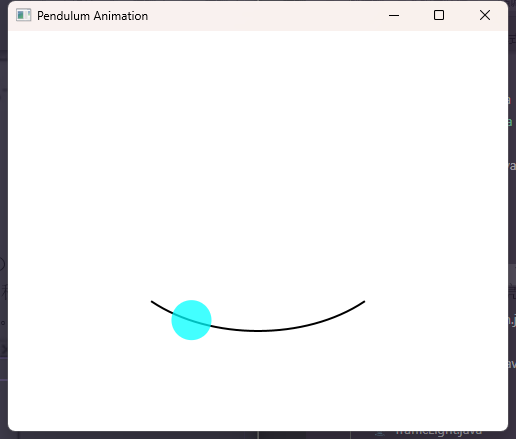
编写一个程序,用动画完成来回摆动,如图 15-31 所示。单击 / 释放鼠标以暂停 / 恢复动画。加上15.26 (改变透明度), 当球摆动的时候改变球的透明度
import javafx.animation.FadeTransition;
import javafx.animation.Interpolator;
import javafx.animation.PathTransition;
import javafx.animation.Timeline;
import javafx.application.Application;
import javafx.scene.Scene;
import javafx.scene.layout.Pane;
import javafx.scene.paint.Color;
import javafx.scene.shape.Arc;
import javafx.scene.shape.ArcType;
import javafx.scene.shape.Circle;
import javafx.stage.Stage;
import javafx.util.Duration;

public class PendulumAnimation extends Application {

    @Override
    public void start(Stage primaryStage) {
        // 创建一个 Pane
        Pane pane = new Pane();

        // 创建一个圆形作为钟摆的重物
        Circle circle = new Circle(20, Color.AQUA);
        circle.setCenterX(250);
        circle.setCenterY(200);

        // 创建一个弧形作为钟摆的轨迹
        Arc arc = new Arc(250, 200, 150, 100, 225, 90);
        arc.setFill(null);
        arc.setStroke(Color.BLACK);
        arc.setStrokeWidth(2);
        arc.setType(ArcType.OPEN);

        // 将弧形和圆形添加到 Pane 中
        pane.getChildren().addAll(arc, circle);

        // 创建摆动动画
        PathTransition pathTransition = new PathTransition(Duration.seconds(2), arc, circle);
        pathTransition.setInterpolator(Interpolator.LINEAR);
        pathTransition.setCycleCount(Timeline.INDEFINITE);
        pathTransition.setAutoReverse(true);

        // 创建透明度变化动画
        FadeTransition fadeTransition = new FadeTransition(Duration.seconds(1), circle);
        fadeTransition.setFromValue(1.0);
        fadeTransition.setToValue(0.3);
        fadeTransition.setAutoReverse(true);
        fadeTransition.setCycleCount(Timeline.INDEFINITE);

        // 启动动画
        pathTransition.play();
        fadeTransition.play();

        // 设置鼠标点击事件
        pane.setOnMouseClicked(event -> {
            if (pathTransition.getStatus() == PathTransition.Status.RUNNING) {
                pathTransition.pause();
                fadeTransition.play();

            } else {
                pathTransition.play();
                fadeTransition.play();
            }
        });

        // 创建一个 Scene
        Scene scene = new Scene(pane, 500, 400);

        // 设置 Stage 的 Scene
        primaryStage.setScene(scene);

        // 显示 Stage
        primaryStage.setTitle("Pendulum Animation");
        primaryStage.show();
    }
}
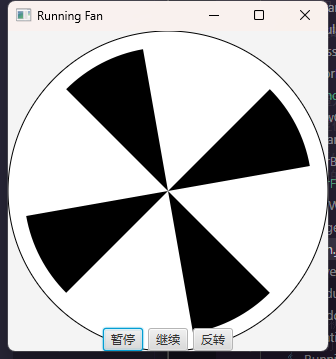
编写一个程序显示一个转动的风扇。Pause、Resume和Reverse 按钮用于暂停、继续和反转风扇的转动
import javafx.animation.KeyFrame;
import javafx.animation.Timeline;
import javafx.application.Application;
import javafx.geometry.Pos;
import javafx.scene.Scene;
import javafx.scene.control.Button;
import javafx.scene.layout.BorderPane;
import javafx.scene.layout.HBox;
import javafx.scene.layout.Pane;
import javafx.scene.paint.Color;
import javafx.scene.shape.Arc;
import javafx.scene.shape.ArcType;
import javafx.scene.shape.Circle;
import javafx.stage.Stage;
import javafx.util.Duration;

public class RunningFan extends Application {
    @Override
    public void start(Stage primaryStage) {
        FanPane fanPane = new FanPane();
        HBox hBox = new HBox(5);
        Button button_Pause = new Button("暂停");
        Button button_Resume = new Button("继续");
        Button button_Reverse = new Button("反转");
        hBox.setAlignment(Pos.CENTER);
        hBox.getChildren().addAll(button_Pause, button_Resume, button_Reverse);

        BorderPane borderPane = new BorderPane();
        borderPane.setCenter(fanPane);
        borderPane.setBottom(hBox);

        Scene scene = new Scene(borderPane, 320, 320);
        primaryStage.setTitle("Running Fan");
        primaryStage.setScene(scene);
        primaryStage.show();
        int framerate = 100;
        Timeline timeline = new Timeline(new KeyFrame(Duration.millis(1000 / framerate), e -> fanPane.move()));
        timeline.setCycleCount(Timeline.INDEFINITE);
        timeline.play();

        scene.widthProperty().addListener(e -> fanPane.setW(fanPane.getWidth()));
        scene.heightProperty().addListener(e -> fanPane.setH(fanPane.getHeight()));

        button_Pause.setOnAction(e -> timeline.pause());
        button_Resume.setOnAction(e -> timeline.play());
        button_Reverse.setOnAction(e -> fanPane.reverse());
    }
}

class FanPane extends Pane {
    private double width = 320;  // 设置初始宽度值
    private double high = 320;  // 设置初始高度值
    private double radius = Math.min(width, high) * 0.5;
    private double increment = 5;
    private Arc arc[] = new Arc[4];
    private double startAngle = 10;
    private Circle circle = new Circle(width / 2, high / 2, radius);

    public FanPane() {
        circle.setStroke(Color.BLACK);
        circle.setFill(Color.WHITE);
        getChildren().add(circle);

        for (int i = 0; i < 4; i++) {
            arc[i] = new Arc(width / 2, high / 2, radius * 0.9, radius * 0.9, startAngle + i * 90, 35);
            arc[i].setFill(Color.BLACK);
            arc[i].setType(ArcType.ROUND);
            getChildren().addAll(arc[i]);
        }
    }

    public void reverse() {
        increment *= -1;
    }

    public void move() {
        setStartAngle(startAngle + increment);
    }

    public void setStartAngle(double angle) {
        startAngle = angle;
        setValues();
    }

    public void setValues() {
        radius = Math.min(width, high) * 0.5;
        circle.setRadius(radius);
        circle.setCenterX(width / 2);
        circle.setCenterY(high / 2);

        for (int i = 0; i < 4; i++) {
            arc[i].setRadiusX(radius * 0.9);
            arc[i].setRadiusY(radius * 0.9);
            arc[i].setCenterX(width / 2);
            arc[i].setCenterY(high / 2);
            arc[i].setStartAngle(startAngle + i * 90);
        }
    }

    public void setW(double w) {
        this.width = w;
        radius = Math.min(width, high) * 0.5;
        setValues();
    }

    public void setH(double h) {
        this.high = h;
        radius = Math.min(width, high) * 0.5;
        setValues();
    }
}
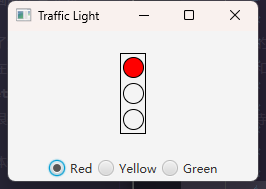
编写一个程序来模拟交通信号灯。程序可以让用户从红、黄、绿三种顔色灯中选择一种。当选择一个单选按钮后,相应的灯被打开,并且一次只能亮一种灯。程序开始时所有的灯都是不亮的
import javafx.application.Application;
import javafx.geometry.Insets;
import javafx.geometry.Pos;
import javafx.scene.Scene;
import javafx.scene.control.*;
import javafx.scene.layout.*;
import javafx.scene.paint.Color;
import javafx.scene.shape.Circle;
import javafx.scene.shape.Rectangle;
import javafx.stage.Stage;

public class TrafficLight extends Application {
    @Override
    public void start(Stage pStage) {
        Scene scene = new Scene(getPane(), 250, 150);
        pStage.setTitle("Traffic Light");
        pStage.setScene(scene);
        pStage.show();
    }

    public BorderPane getPane() {
        BorderPane borderPane = new BorderPane();

        HBox hBox = new HBox();
        RadioButton rbRed = new RadioButton("Red");
        RadioButton rbYellow = new RadioButton("Yellow");
        RadioButton rbGreen = new RadioButton("Green");
        hBox.getChildren().addAll(rbRed, rbYellow, rbGreen);
        // 让面板内的节点居中对齐
        hBox.setAlignment(Pos.CENTER);
        // 设置每个节点的间距
        hBox.setSpacing(5);
        // 设置节点和面板之间的间距
        hBox.setPadding(new Insets(5, 5, 5, 5));

        ToggleGroup group = new ToggleGroup();
        rbRed.setToggleGroup(group);
        rbYellow.setToggleGroup(group);
        rbGreen.setToggleGroup(group);

        StackPane stackPane = new StackPane();
        GridPane gridPane = new GridPane();
        Rectangle rec = new Rectangle(25, 80);
        rec.setFill(Color.TRANSPARENT);
        rec.setStroke(Color.BLACK);
        Circle red = new Circle(10);
        red.setFill(Color.TRANSPARENT);
        red.setStroke(Color.BLACK);
        Circle yellow = new Circle(10);
        yellow.setFill(Color.TRANSPARENT);
        yellow.setStroke(Color.BLACK);
        Circle green = new Circle(10);
        green.setFill(Color.TRANSPARENT);
        green.setStroke(Color.BLACK);
        gridPane.setAlignment(Pos.CENTER);
        gridPane.setVgap(5);

        gridPane.add(red, 0, 0);
        gridPane.add(yellow, 0, 1);
        gridPane.add(green, 0, 2);
        stackPane.getChildren().addAll(gridPane, rec);

        rbRed.setOnAction(e -> {
            yellow.setFill(Color.TRANSPARENT);
            green.setFill(Color.TRANSPARENT);
            red.setFill(Color.RED);
        });
        rbYellow.setOnAction(e -> {
            green.setFill(Color.TRANSPARENT);
            red.setFill(Color.TRANSPARENT);
            yellow.setFill(Color.YELLOW);
        });
        rbGreen.setOnAction(e -> {
            yellow.setFill(Color.TRANSPARENT);
            red.setFill(Color.TRANSPARENT);
            green.setFill(Color.GREEN);
        });

        borderPane.setCenter(stackPane);
        borderPane.setBottom(hBox);
        return borderPane;
    }
}
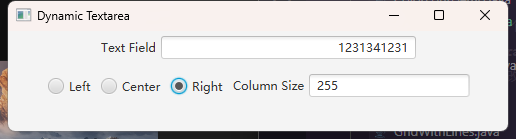
编写一个程序,动态地设置文本域的水平对齐属性和列宽厲性
import javafx.application.Application;
import javafx.geometry.Insets;
import javafx.geometry.Pos;
import javafx.scene.Scene;
import javafx.scene.control.*;
import javafx.scene.layout.*;
import javafx.stage.Stage;

public class DynamicTextarea extends Application {
    @Override
    public void start(Stage pStage) {
        Scene scene = new Scene(getPane(), 500, 100);
        pStage.setTitle("Dynamic Textarea");
        pStage.setScene(scene);
        pStage.show();
    }

    public VBox getPane() {
        VBox vBox = new VBox(10);
        vBox.setPadding(new Insets(5));

        HBox hBox1 = new HBox();
        hBox1.setAlignment(Pos.CENTER);

        TextField textField1 = new TextField();
        Label lbTextField1 = new Label("Text Field", textField1);
        lbTextField1.setContentDisplay(ContentDisplay.RIGHT);

        hBox1.getChildren().add(lbTextField1);

        HBox hBox2 = new HBox(10);
        hBox2.setAlignment(Pos.CENTER);
        hBox2.setPadding(new Insets(5));

        ToggleGroup group = new ToggleGroup();
        RadioButton left = new RadioButton("Left");
        left.setToggleGroup(group);
        left.setOnAction(e -> textField1.setAlignment(Pos.CENTER_LEFT));

        RadioButton center = new RadioButton("Center");
        center.setToggleGroup(group);
        center.setOnAction(e -> textField1.setAlignment(Pos.CENTER));

        RadioButton right = new RadioButton("Right");
        right.setToggleGroup(group);
        right.setOnAction(e -> textField1.setAlignment(Pos.CENTER_RIGHT));

        TextField textField2 = new TextField();
        // 使用TextFormatter来处理输入,避免非数字输入
        textField2.setTextFormatter(new TextFormatter<>(change -> {
            if (!change.isContentChange()) {
                return change;
            }
            String text = change.getControlNewText();
            return text.matches("\\d*") ? change : null;
        }));
        // 回车键更新文本框宽度
        textField2.setOnAction(e -> {
            try {
                int width = Integer.parseInt(textField2.getText());
                textField1.setPrefWidth(width);
            } catch (NumberFormatException ex) {
                // 输入为空时不做处理
            }
        });

        Label lbTextField2 = new Label("Column Size", textField2);
        lbTextField2.setContentDisplay(ContentDisplay.RIGHT);

        hBox2.getChildren().addAll(left, center, right, lbTextField2);

        vBox.getChildren().addAll(hBox1, hBox2);

        return vBox;
    }
}